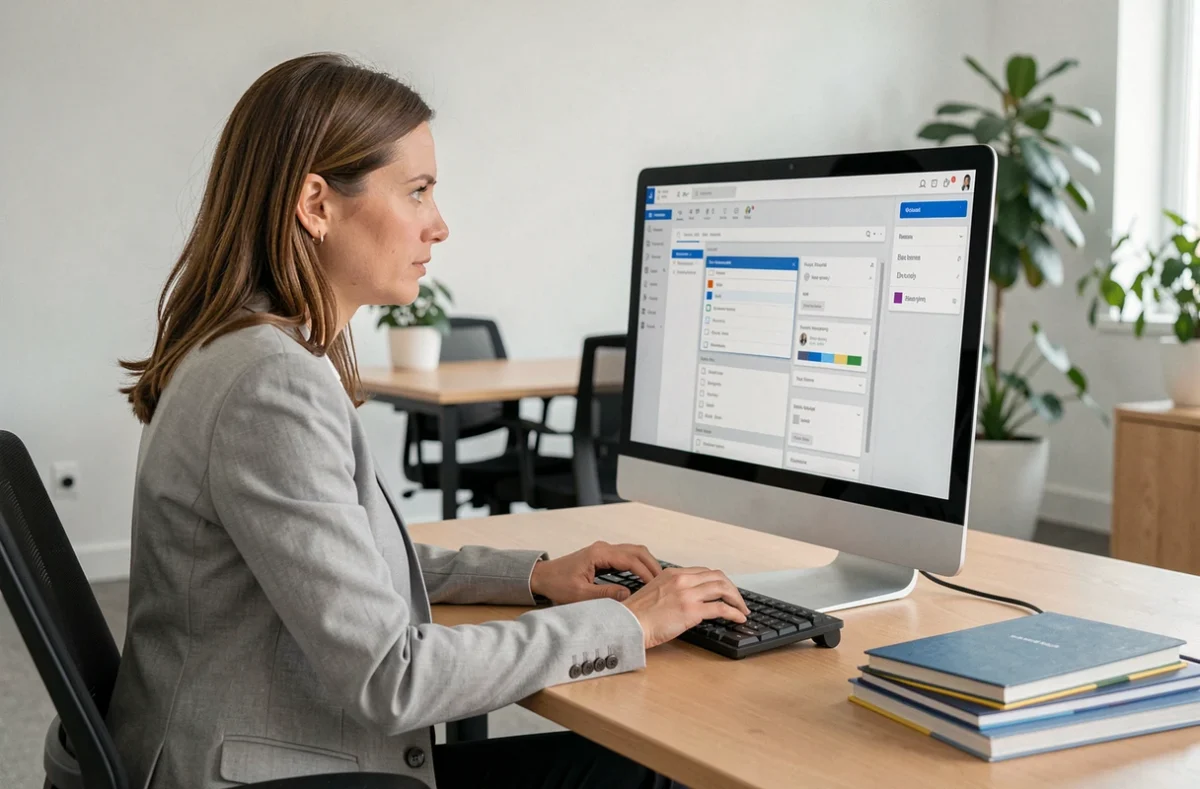
Zimbra, in the version deployed by CG66, offers several layers of customization. Some are controlled directly by users, while others are locked on the server side. Before changing anything, the first step is to identify what the administrator actually allows. Themes, display preferences and keyboard shortcuts are not all available, depending on the version installed and the departmental IT policy.
Zimbra keyboard shortcuts: the most overlooked way to customize your experience
Competing pages focus on logos, favicons and interface colors. None cover keyboard shortcuts, which are the most direct way to make everyday Zimbra use smoother without relying on an administrator.
Zimbra offers shortcuts for switching between the Mail, Contacts and Calendar modules, composing a message, starting a search or changing views. These shortcuts work without server-side changes, provided the classic web interface is enabled.
An employee who handles dozens of emails a day can save a measurable amount of time by avoiding repeated trips to the mouse. To check the full list of shortcuts available in your instance, simply open Zimbra Preferences and then the dedicated shortcuts tab. If this tab is missing or grayed out, it may mean the administrator has restricted this feature.
You can customize Zimbra CG66 for a better experience by combining these shortcuts with the preference settings described below.
Zimbra CG66 user preferences: what you can and can’t change
The distinction between user and administrator settings is the most common source of confusion. A grayed-out preference isn’t a bug; it’s a server-side restriction. It’s best to contact CG66 IT support rather than look for a workaround.
| Setting | User can change | Requires administrator |
|---|---|---|
| Message display (HTML or plain text) | Yes | No |
| Number of messages per page | Yes | No |
| Automatic image downloads | Yes | No |
| Interface color theme | Varies by version | May be locked |
| Favicon and login logo | No | Yes (zmprov command) |
| Background and secondary colors | No | Yes (zimbraSkinBackgroundColor) |
| Keyboard shortcuts | Can view; customization varies | May be restricted |
| Reading pane (position, enabled/disabled) | Yes | No |
This table summarizes the most common cases. The “Varies by version” column indicates that CG66 may use a configuration that differs from standard Zimbra. Before planning a change to the appearance, checking with IT support to confirm what can be changed is the most effective approach.
Message display settings
HTML display lets you read messages with their original formatting (bold text, colors and embedded images). Plain-text display removes all formatting and shows HTML tags as they are.
For employees who mainly receive internal emails without complex formatting, plain-text mode reduces visual distractions and speeds up loading. You can select this option under Preferences, in the Mail tab, without administrator involvement.
Reading pane and snippets
Enabling snippets (a preview of the first line of a message when you hover over it) makes it easier to sort messages without opening each email. The “double-click opens in a new window” option is useful for comparing two messages side by side. Both settings are in the mail preferences.
Zimbra CG66 accessibility: keyboard and screen reader
A customized interface is only valuable if all employees can use it, including those who navigate with a keyboard or screen reader. This aspect is missing from the usual Zimbra guides.
Your choice of theme directly affects contrast and readability. A light-background theme with light gray text can create contrast issues for people with low vision. If CG66 offers several themes, choosing the one with the highest text-to-background contrast ratio improves readability for all users, not just those with disabilities.
- Check the contrast of the active theme using an online WCAG contrast checker (the recommended minimum ratio for regular text is 4.5:1)
- Use keyboard shortcuts for common actions (switching between modules, composing messages and searching) so you don’t rely exclusively on the mouse
- Disable automatic image downloads if your screen reader misinterprets embedded visual content; this also reduces noise when reading messages
- Set the reading pane to the bottom rather than the side, as this layout makes linear keyboard navigation easier
These adjustments don’t require administrator involvement. They are user preferences that improve the experience without compromising readability for other employees.
Zimbra themes and appearance: user-side limitations
Changes to the logo, favicon and global colors require server commands (zmprov modifyDomain, zmprov modifyConfig). These operations are reserved for the CG66 administrator and cannot be performed through the user interface.
In practice, employees can only select a theme from those made available by the administrator. If only one theme is offered, there is no choice. If several are available, you can change the theme under Preferences, in the Appearance or Theme section.
When to contact support
- The default theme has insufficient contrast for some employees
- A useful preference (shortcuts, reading pane) appears grayed out
- Zimbra webmail behaves differently across the browsers used by your department
Specifying the exact setting involved in your request (parameter name, preferences tab) helps the IT department process it faster.
Customizing Zimbra CG66 relies on two distinct approaches: user preferences that can be accessed directly, and server settings that require a formal request. Identifying which one applies before taking action avoids unnecessary changes and misdirected support tickets.